
Your Photoshop colors.
Bring .aco, .ase or pasted colors into a Figma file as variables. You see each change first, and Undo puts it back.
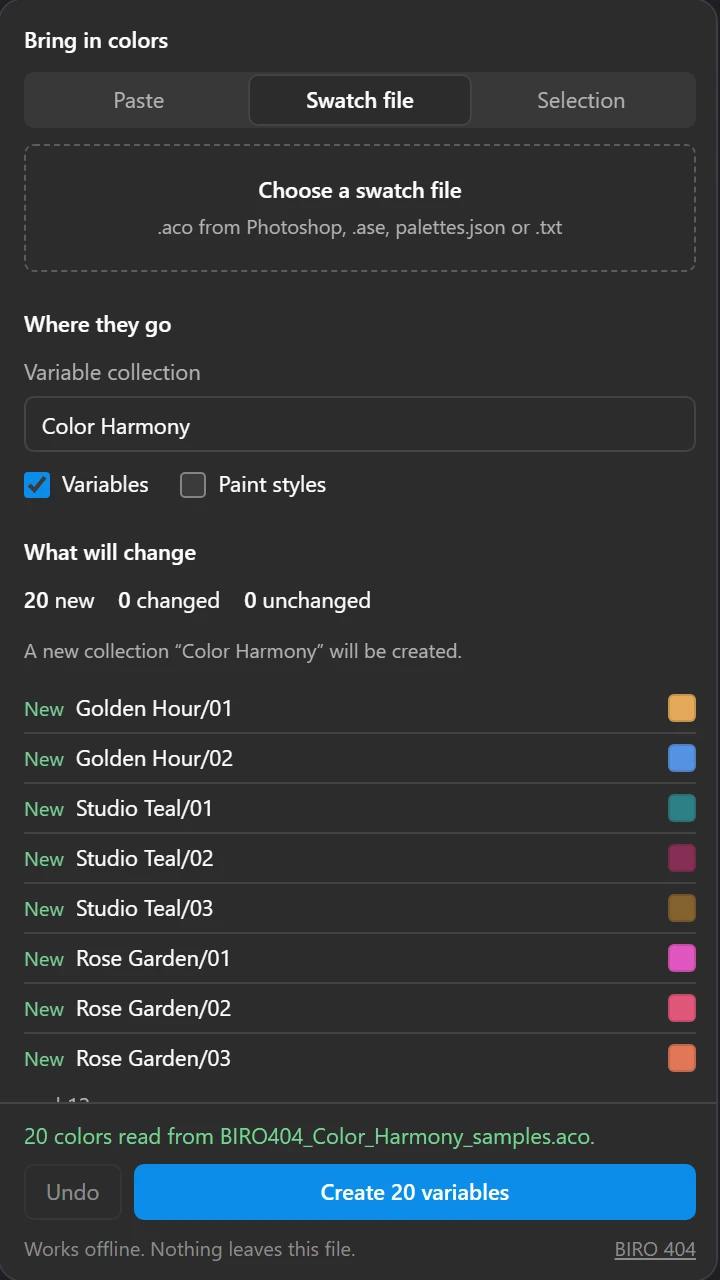
20 swatches from one .aco
As the plugin writes them into a simulated file in this demo.
Try the real panel
This is the plugin's own interface and code. It runs in your browser against a simulated Figma file, so you can see exactly what it would write.
The demo on this page runs on a stand-in file, not Figma. The import logic itself has been run in a real Figma file through the Plugin API (20 variables written, re-import with no changes). The panel inside Figma is still to be checked.
Or choose your own .aco or .ase in the panel. It stays in this tab.
See every change before it happens
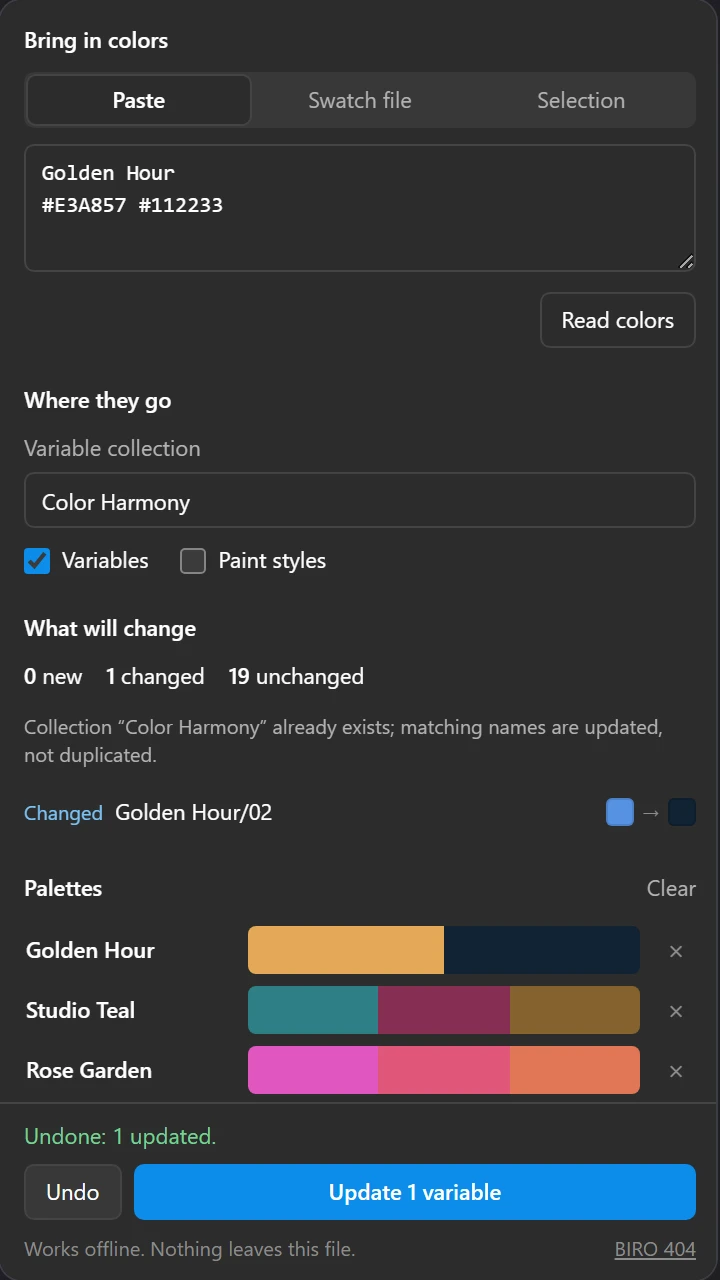
The second import is where tools usually make a mess. Here the panel compares names first and tells you what it will do, in its own words.
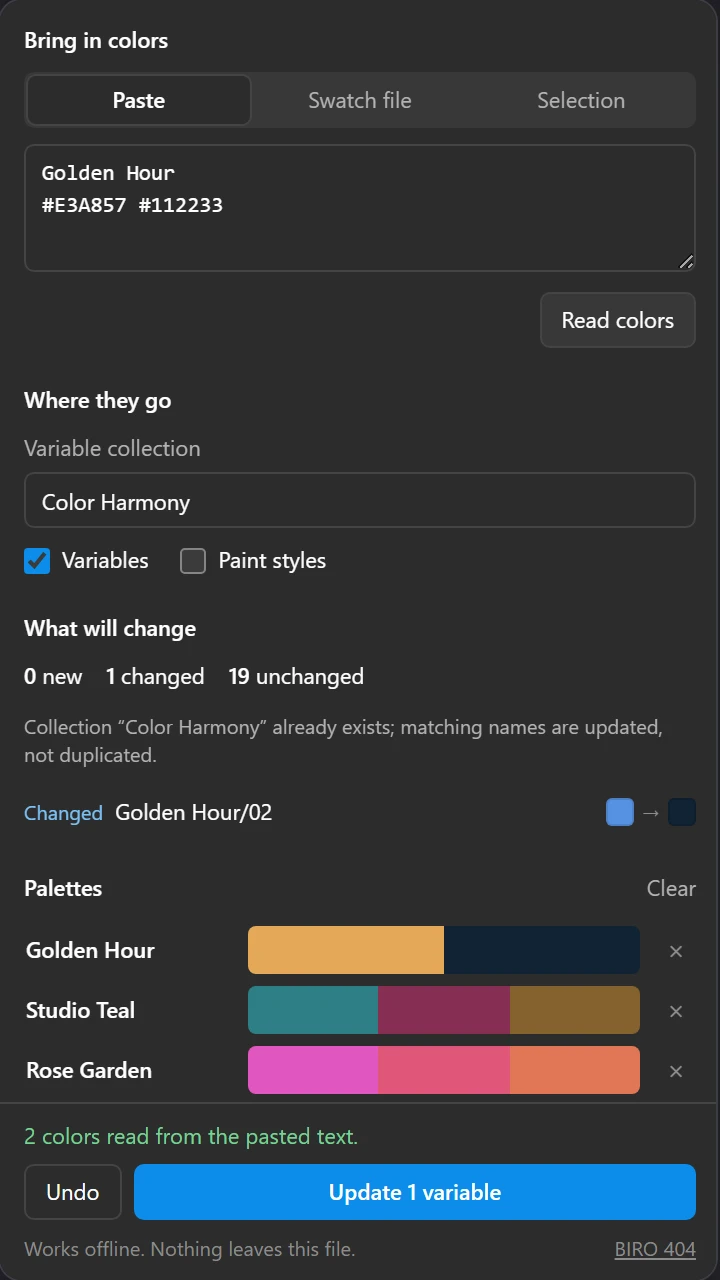
Golden Hour/02
to
#5792E3 to #112233
19 variables
left as they are
0
no duplicates
Undo takes back the last import and keeps later edits
-
You import
20 variables created in “Color Harmony”. The panel keeps a receipt of exactly what it wrote.
-
A teammate edits
Rose Garden/02 gets a new value by hand.
-
You press Undo
Your 19 untouched variables are removed. The edited one stays, and the panel says so.
Know this in a shared file: the receipt lives in the file, so Undo always takes back the last import in that file, even if a teammate made it.
And back to Photoshop
Save any collection as an .aco swatch file, or copy the HEX values. In our simulated test, the file saved from the sample matches the original byte for byte.
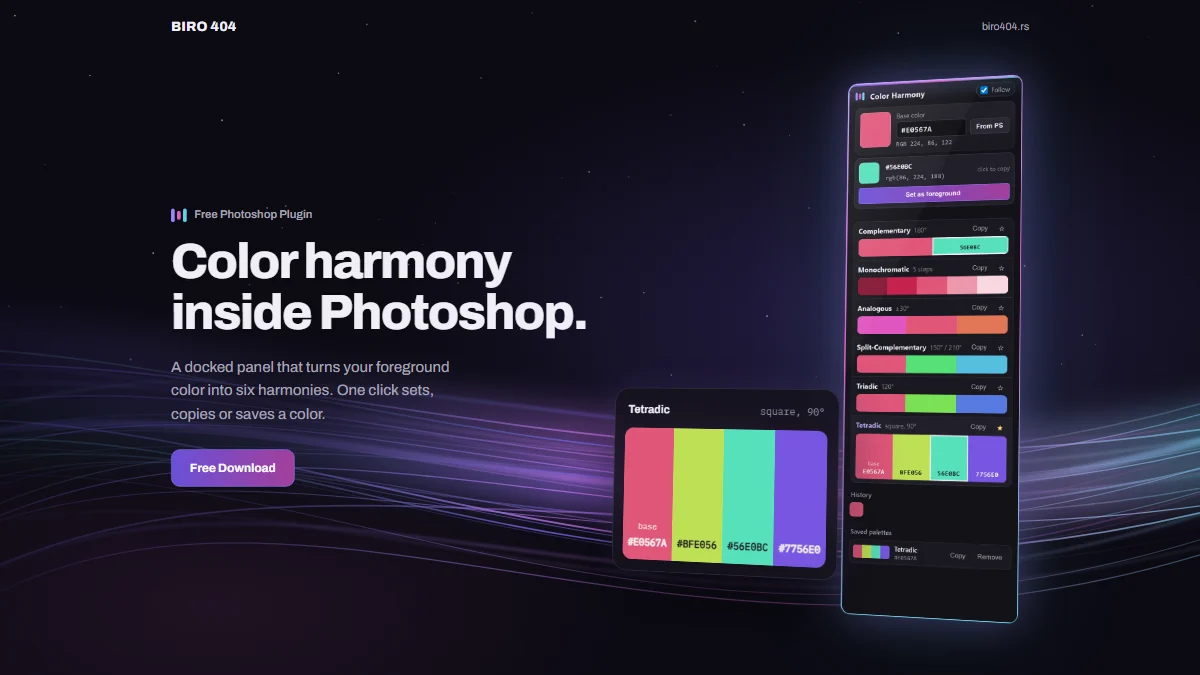 The other half: Color Harmony for PhotoshopFree panel. Six harmonies from your foreground color.
What it reads
Reads
.acoPhotoshop swatches, versions 1 and 2, with names.aseAdobe swatch exchange, with groups- Pasted HEX,
rgb()and CSS variables - Colors of the layers you select
- The Color Harmony Photoshop panel's Copy output
Writes
- Color variables, grouped by palette
- Paint styles, if you switch them on
- A fill bound to a variable on selected layers
.acoback out, or a HEX list
Not in this version
- Light and Dark modes. Colors go to the collection's default mode.
- Exact CMYK or Lab. They are converted without a color profile and flagged.
- Anything online. The plugin has no network access.
Where it stands today
Checked on our machine
Against a simulated Figma API, not Figma.
- Reads the Photoshop sample .aco: 6 palettes, 20 colors
- Preview, create, update and refuse a stale preview
- Undo, including edits made after the import
- Saved .aco is identical to the original
- Broken files get a clear message
Still to check in Figma
Needs a Figma test file.
- The panel inside Figma, both themes
- Ctrl+Z after an import
- Saving the .aco from inside Figma
- An .aco exported by Photoshop itself
Not available
No release date yet.
- Figma Community listing
- Light and Dark modes
Film, 0:27
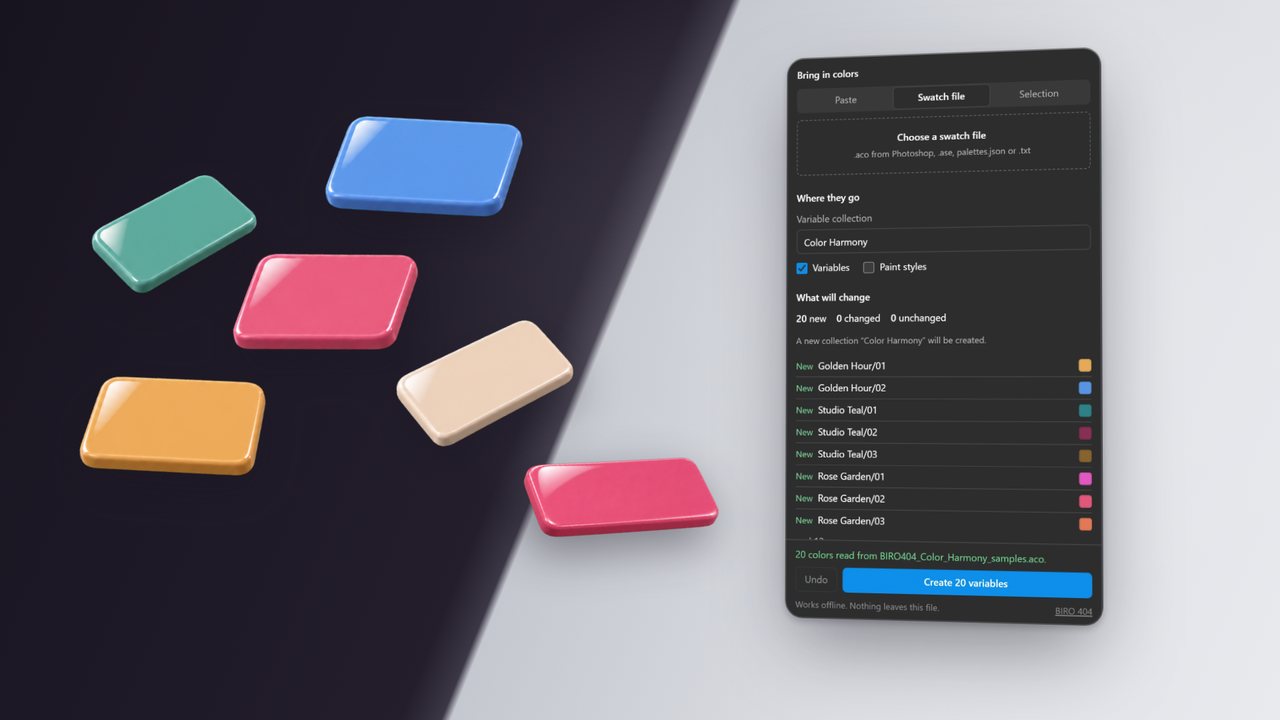
Local demo: the real plugin panel on a simulated Figma file. The import logic was later run in a real Figma file; the panel inside Figma is not yet checked.
Film transcript
- Your brand colors live in Photoshop.
- Your design system lives in Figma.
- Choose the .aco. See every variable before anything is written.
- One click: 20 variables, grouped by palette.
- Import again: only the changed color is updated.
- Undo puts the previous value back.
- Your Photoshop colors. Real Figma Variables.
- Shown: the plugin panel running locally on a simulated Figma file. The import logic was later run in a real Figma file.